
A main profile stores a set of inputs, their mappings and calibration, and the output choice. Separate profiles are useful for different games, different people, or different positions for your equipment.
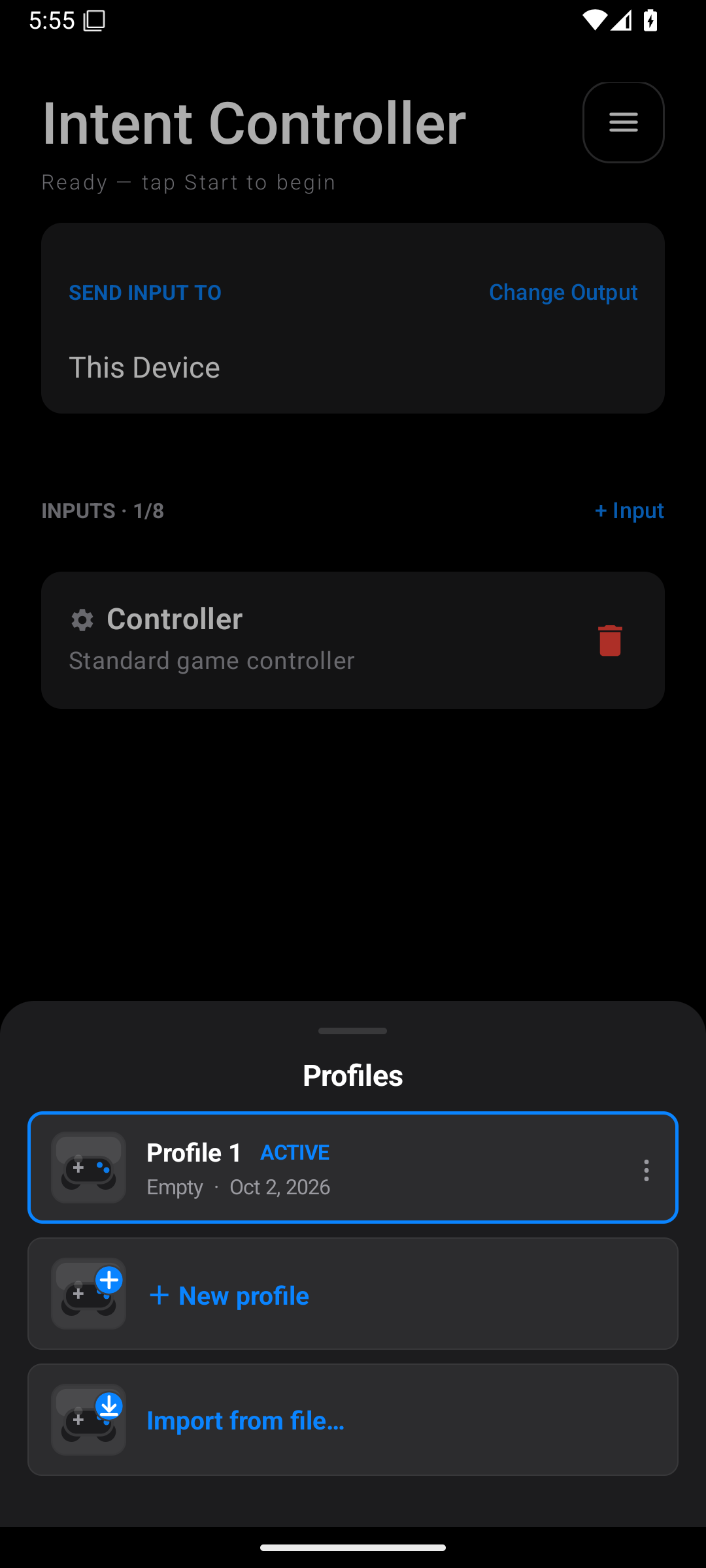
Create and switch profiles
- Open the home menu.
- Tap Profiles: ….
- Tap + New profile.
- Enter a clear name, such as Racing — chair controls, and confirm it.
- Tap the new profile's row to make it active. Creating a profile does not switch to it automatically.
- Set up that profile's output and inputs.
- To switch later, reopen Profiles and tap the profile you want.
- Check the active label and connections before starting.
Switching profiles releases current output first. Treat it as a setup change, then start the required session again.
Rename, duplicate, or delete
- Open Profiles.
- Tap the ⋮ on the profile row.
- Choose Rename, Duplicate, or Delete.
- Complete the name or confirmation prompt.
Duplicate is useful before experimenting with an existing game layout. Check the copy's board connections before using it; you may need to select and verify physical boards again.
Delete removes the profile. Export a copy first if you might want it later.
Export and import
To export:
- Open the profile row's ⋮ menu.
- Tap Export / Share….
- Save or share the
.icprofilefile with the Android chooser.
To import:
- Open Profiles.
- Tap Import from file… below + New profile. Scroll within the sheet if needed.
- Select the
.icprofilefile with Android's file picker. - Read any import result or error.
- Select the imported profile.
- Review its inputs, mappings, and calibration.
- Select and verify your own physical boards.
- Set up its output connection on your phone.
An exported profile carries portable mapping information. It does not carry a working Wi-Fi connection or console login to another phone. Board names and mappings can be preserved, but board addresses and physical identifiers are removed on import, and the board must be verified again. Output connection settings are not exported as a ready-to-use connection.
An import over the eight-input limit is rejected. If a profile came from another person, recalibrate face tracking and check sensor ranges for your own controls.
The virtual controller's Layout Profiles are separate. Saving a touch layout does not export the main input profile.