
Inputs are the things you use
An input is something you press, move, or do. A switch, key, stick, and smile are all possible inputs.
A profile can contain up to eight input devices. These can be a mixture of types. Each device can have several mappings.
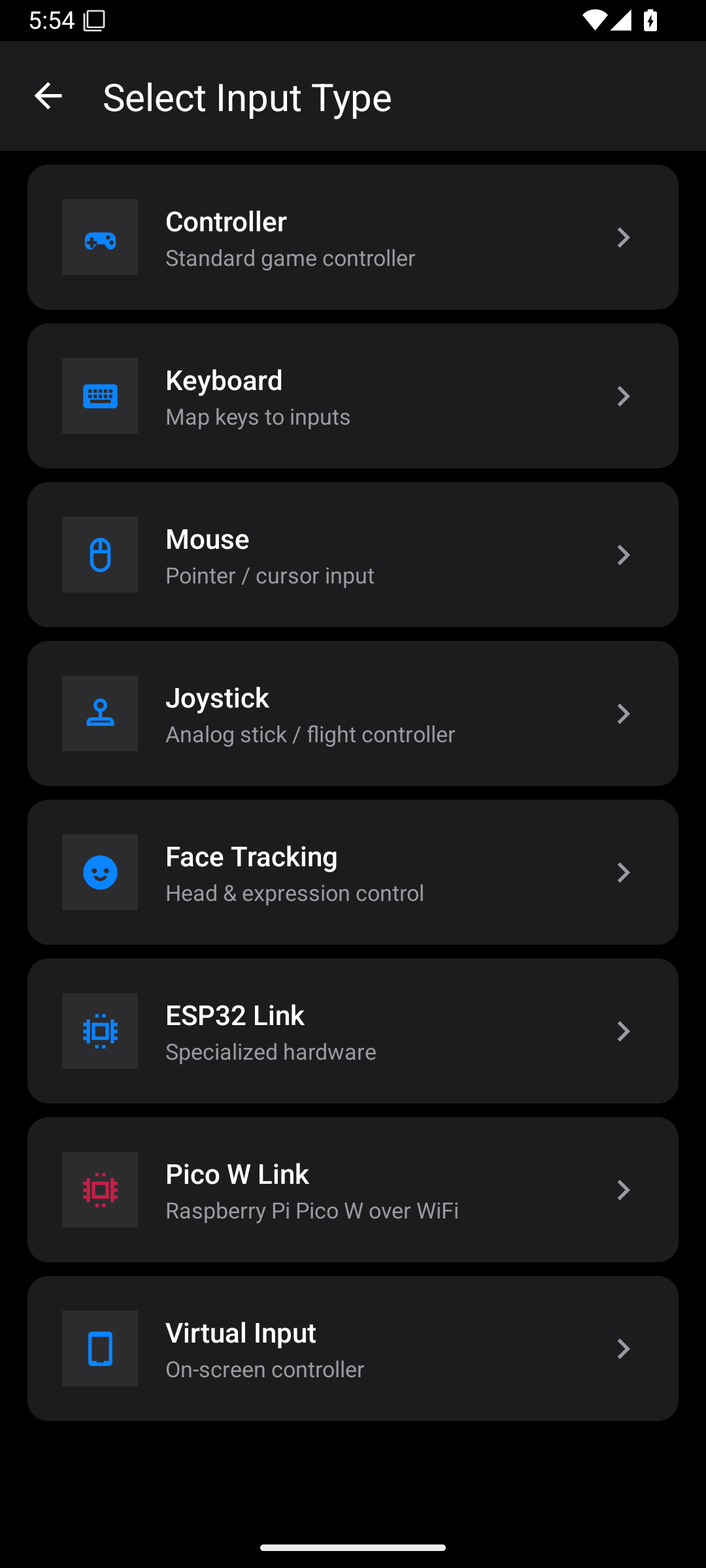
| Input in the app | What it reads | A reason to use it |
|---|---|---|
| Controller | A game controller connected to Android | Change button positions or combine actions |
| Keyboard | Keys from a connected keyboard | Use large keys or a familiar layout |
| Mouse | Mouse buttons, movement, and wheel input | Use clicks for actions or movement for a stick |
| Joystick | Buttons and axes from an Android joystick device | Use a flight stick, adapted stick, or similar device |
| Face Tracking | Expressions and head movement through the camera | Play without pressing a physical button |
| ESP32 Link | Switches and sensors reported by an ESP32 | Use a custom set of physical controls |
| Pico W Link | Switches and sensors reported by a Pico W | Use a custom set of physical controls |
| Virtual Input | The app's on-screen controller | Use touch controls, with positions and sizes you can change |
Outputs are where the actions go
An output is the destination for the controller actions. Each profile uses one output at a time.
| Output in the app | Where the actions go | What you need to set up |
|---|---|---|
| This Device | The phone broadcasts a Bluetooth gamepad | Bluetooth permissions and pairing with the receiving device |
| ESP32 | An ESP32 acts as a controller bridge | Phone-to-board connection, controller identity, and board-to-host connection |
| Pico W | A Pico W acts as a controller bridge | Phone-to-board connection, controller identity, and board-to-host connection |
| PS Remote Play | The app's Remote Play connection to a PlayStation | Console details, account ID, and console pairing |
| Xbox Remote Play | The app's Remote Play connection to an Xbox | Microsoft sign-in and selection of your console |
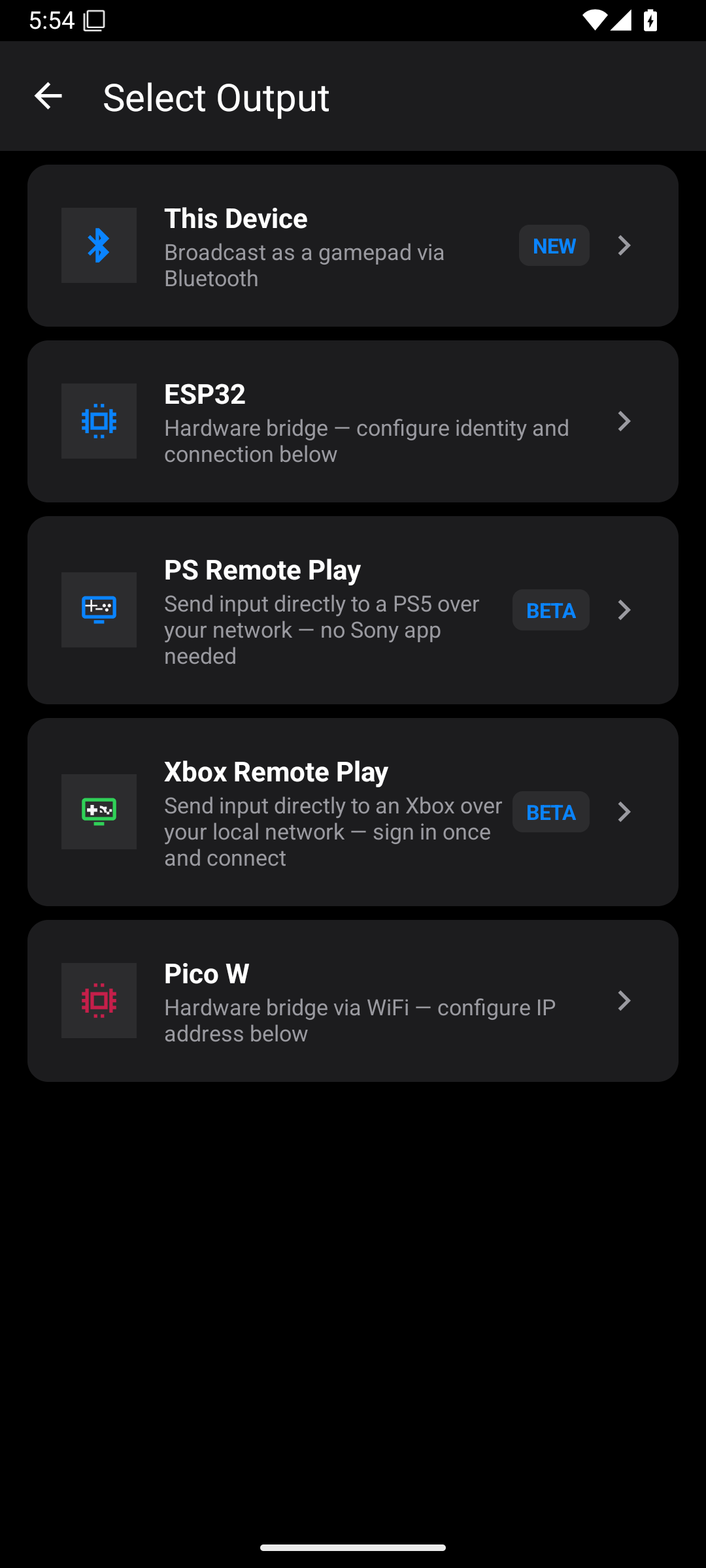
You can use your configured inputs with any of these supported output choices. You do not need a different aim-and-shoot mapping just because you change from a board output to Remote Play.
However, each destination still needs its own connection setup. It must support the controller actions you send. For example, a Touchpad action needs a destination that understands it. Motion data currently goes to PS Remote Play. Choosing an output does not make every computer, console, or game compatible with it.
An Intent is your instruction
A mapping joins an input to an action. An Intent can make that instruction more useful.
Here are three levels of setup:
| Level | Example |
|---|---|
| Connect the input | Connect the board that holds your foot switch |
| Choose its source and target | Read the switch port and send R2 |
| Edit its Intent | Send L2 and R2 together while the switch is held |
The app sends controller controls such as South, L2, and Right Stick. It does not know what your game calls those controls. You must check the game's own control settings. R2 might mean fire in one game and accelerate in another.
The journey is:
Connect inputs → configure their mappings and Intents → choose and connect an output → Start Mapping.
You may choose the output first. The important point is that both sides must be ready before you play.