
You can add several ESP32 boards, several Pico W boards, or a mixture. They share the eight-input limit with the other input types.
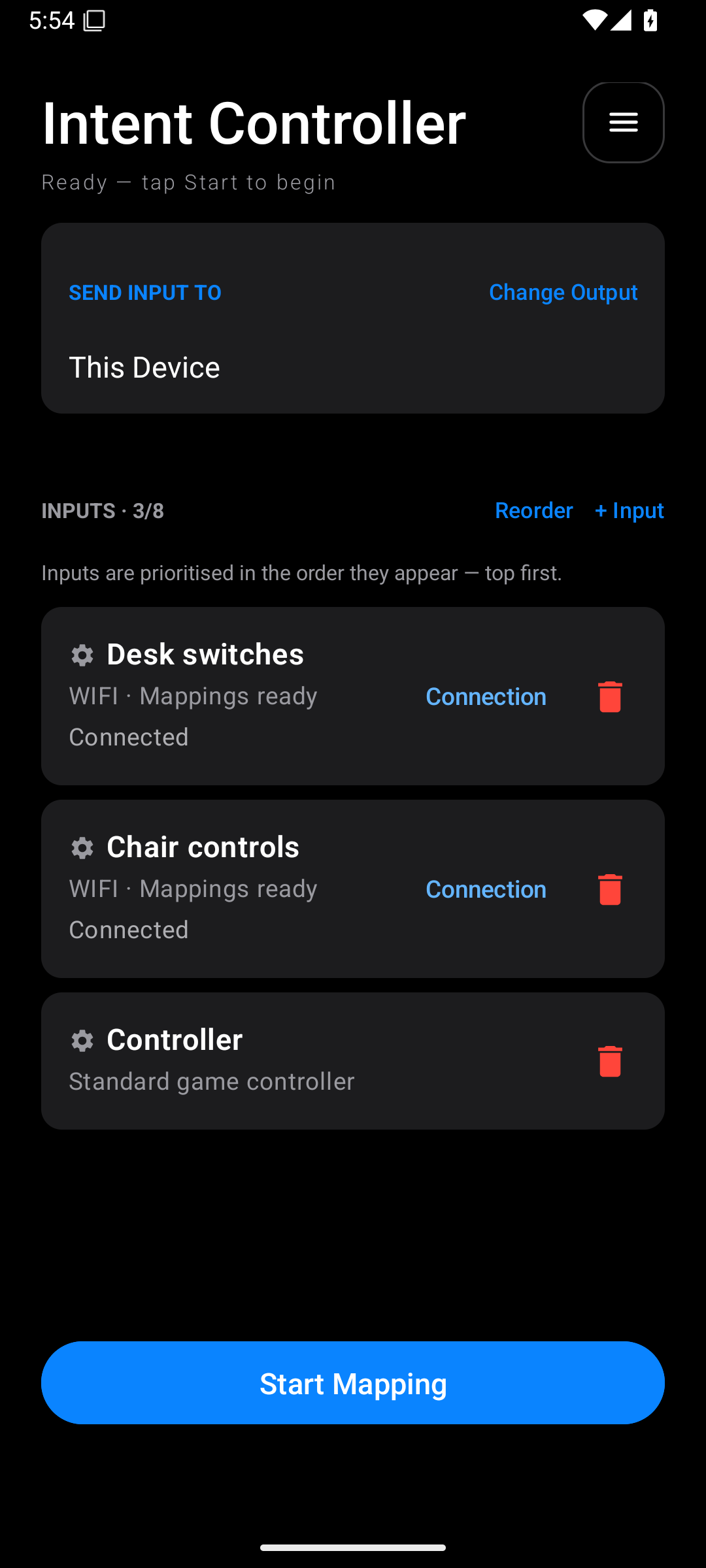
For example, this is a three-input profile:
| Input | Job |
|---|---|
| Desk switches, ESP32 | Aim, fire, and menu buttons |
| Chair controls, Pico W | Movement sensors |
| Controller | Extra buttons or a helper's controls |
Add the next board
- Finish the first board's setup and give it a clear name.
- Tap + Input again.
- Choose ESP32 Link or Pico W Link for the next board.
- Select that physical board explicitly in discovery or the USB list.
- Verify it by moving one of its controls.
- Give it a different name.
- Create its mappings.
- Repeat for any other inputs.
Do not overwrite the first board's connection to add a second one. Connection changes the board on an existing card. + Input creates another input.
If one board goes offline, its own card shows the problem. Use its Connection button to repair that link. You do not need to recreate all the other inputs.
When you press Start Mapping with some mapped inputs offline, the app can show Some inputs are offline. Use Retry connections to try them again. If other mapped inputs are available, Start with available inputs lets you make that choice explicitly. Controls from the missing inputs will be unavailable.
Change which input has priority
- Tap Reorder above the input cards.
- Use ↑ and ↓ to move the cards.
- Put the input you want to have first choice at the top.
- Tap Done.
Order matters when two mappings try to control the same output. It does not affect mappings that control separate buttons or axes. Priority and handover explains this in detail.
An output board does not use an input slot unless you also add it as an input. If one board has both roles, keep the selected physical board consistent. Do not assume the app can recognise the same board automatically across different USB and Wi-Fi identities.